system2(command = "ls")10 R & the Shell
In this chapter, we will learn to
- execute shell commands from R
- execute shell script in RStudio
- execute shell commands in RMarkdown
- execute R commands & script in the shell
10.1 R
Now, let us turn our attention to executing commands from R using system2(). Here we will focus on the following
- execute a command without arguments
- execute commands with arguments
- redirect output
Let us try to execute a command without any additional arguments. We will execute the ls command to list all files and directories. Use system2() and specify the command using the command argument. Whenever you are trying to execute a command from R, the first argument or input should be the command and it must be enclosed in quotes.
Great! Now, how do we specify the options? The additional options of a command must be stored as a character vector and specified using the args argument. In the below example, we delete the myexamples folder we created earlier while decompressing the zip_example.zip file.
system2(command = "rm",
        args    = c("-r", "myexamples"))
In some cases, we might want to redirect the output. Let us say we are writing message to a file using the echo command. In this cases, we want the output to be redirected to the release.txt file. The stdout argument can be used to redirect output to a file or the R console. In the below example, we redirect the output to a file.
system2(command = "echo",
        args    = c("Great Truth"),
        stdout  = "release.txt")
In the next example, we redirect the output to the R console by setting the value of the stdout argument to TRUE. If you are curious, set the value to FALSE and see what happens.
system2(command = "diff",
        args    = c("imports_olsrr.txt", "imports_blorr.txt"),
        stdout  = TRUE)
The run() command from the processx package can be used to execute shell commands as well.
10.2 RStudio
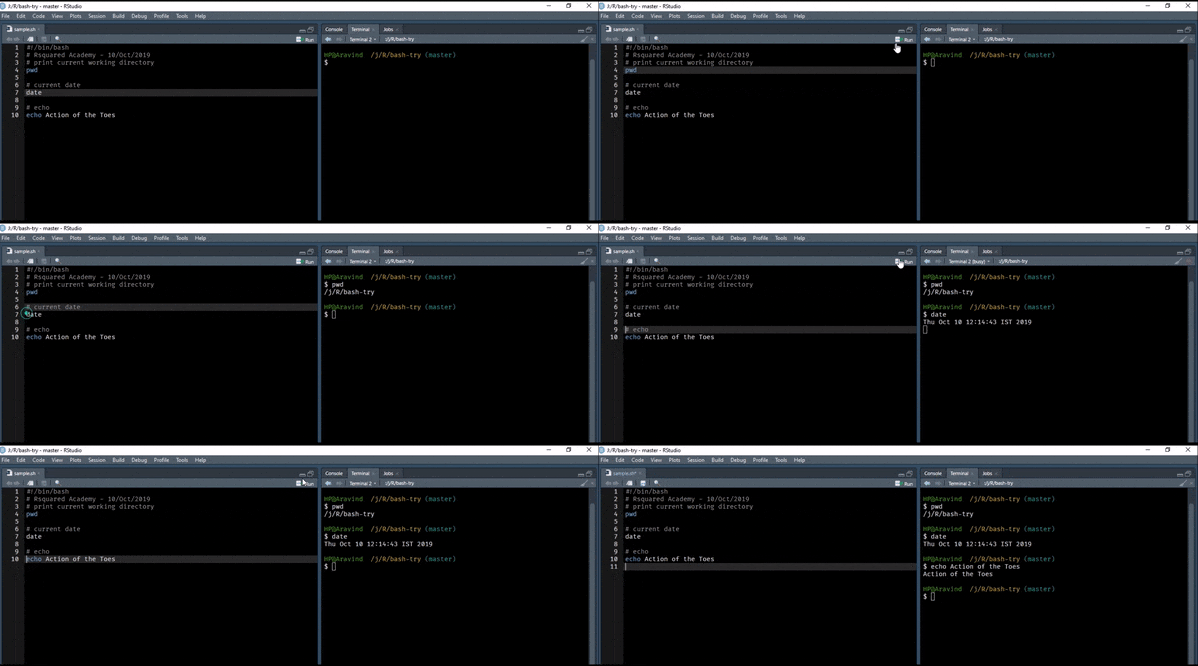
In RStudio, commands can be executed from shell scripts by pressing Ctrl + Enter. Instead of sending the command to the R console, it is redirected to the terminal where it is executed as shown below.
10.3 RMarkdown
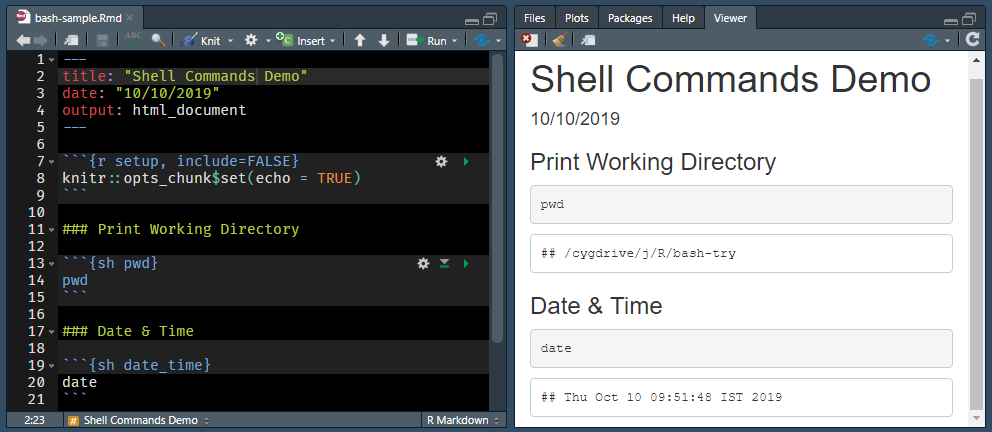
RMarkdown supports bash, sh and awk. This post was initially created using sh as the underlying operating system is Windows. Later, we used bash after installing the Windows subsystem for Linux. Click here to learn more.
10.4 Rscript
In this section, we will learn to execute R commands and scripts in the command line using:
R -eRscript -eR CMD BATCH
The -e option allows us to specify R expression(s). R -e will launch R and then execute the code specified within quotes. Use semi-colon to execute multiple expressions as shown below. You will be able to run the below commands only if you are able to launch R from the command line. Windows users need to ensure that R is added to the path environment.
R -e "head(mtcars); tail(mtcars)"Rscript -e will run code without launching R.
Rscript -e "head(mtcars)"We can use Rscript to execute a R script as well. In the below example, we execute the code in analysis.R file.
Rscript analysis.RIf you are more interested, try the littler package as well.
10.5 Exercises
- From R, run
system2(command = "ls")to list files, thensystem2(command = "rm", args = c("-r", "myexamples"))as shown in the chapter. State what you expect in the R console and in the working directory in each case. - From R, run
system2(command = "echo", args = c("Great Truth"), stdout = "release.txt"), then checkrelease.txtcontains the text. Then runsystem2(command = "diff", args = c("imports_olsrr.txt", "imports_blorr.txt"), stdout = TRUE)and note the differences print to the R console instead of a file. Clean uprelease.txtafterwards if it is not part of the fixtures. - From the shell, run
Rscript -e "head(mtcars)"andRscript analysis.R, and compare withR -e "head(mtcars); tail(mtcars)". State the expected difference: running code without launching the full R console versus executing a script file.
Worked solutions in solutions/r-shell.md (attempt first).